> ## Documentation Index
> Fetch the complete documentation index at: https://docs.paxos.com/llms.txt
> Use this file to discover all available pages before exploring further.
# Billing
> View invoices, make payments, and configure autopay for your Paxos services.
Go to [Billing](https://dashboard.paxos.com/organization/billing) to view invoices, pay outstanding balances, and set up automatic payments.
Billing is not yet generally available. If you're interested, contact [Support](https://support.paxos.com).
**Required Permissions**
* **Billing Read** -- view invoices
* **Billing Write** -- make payments and configure autopay
 ## Invoices
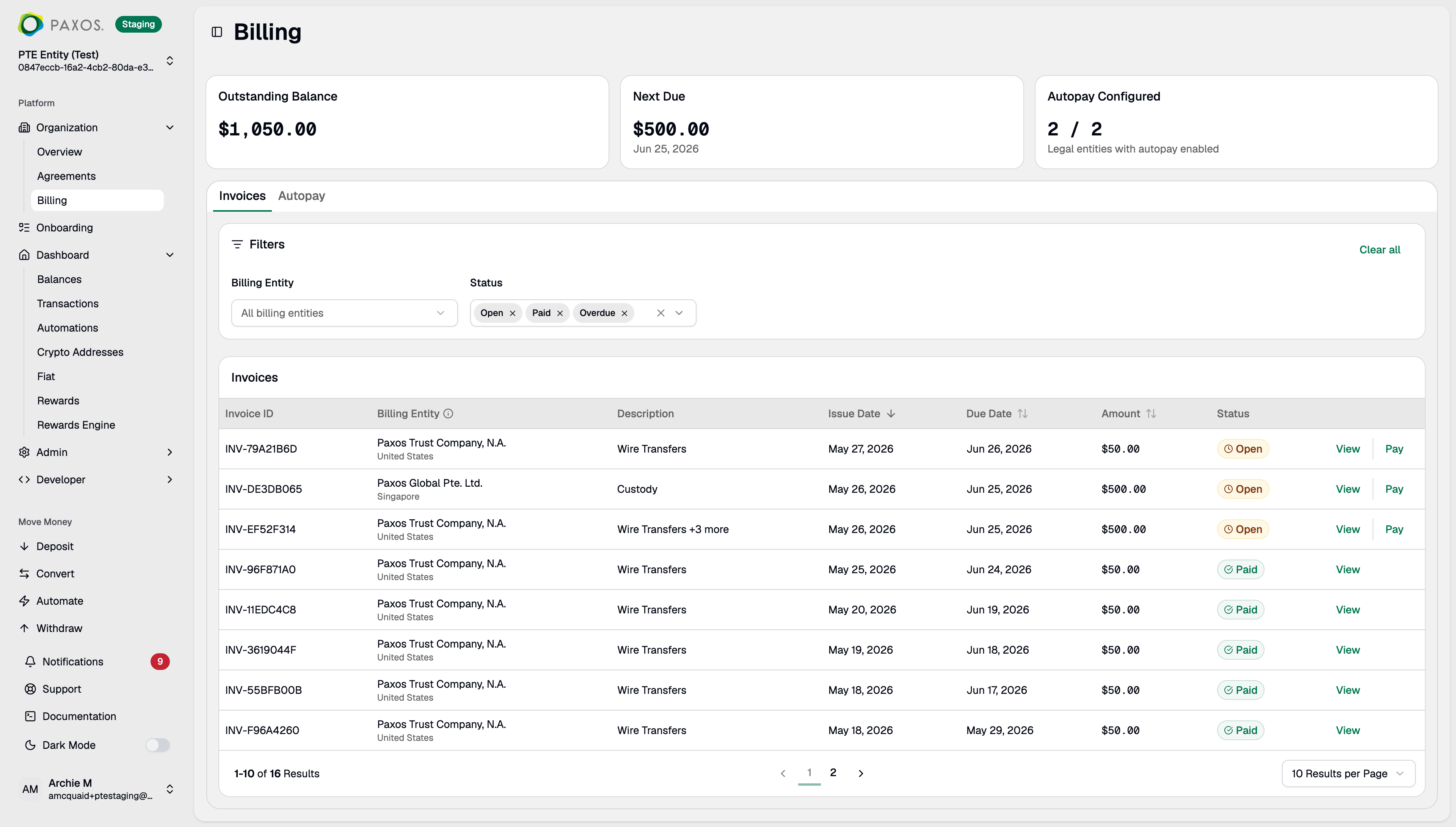
The Invoices tab lists all invoices issued to your organization. Invoices are split by billing entity -- the Paxos legal entity (e.g., Paxos Trust Company, N.A. or Paxos Global Pte. Ltd.) under which your services are contracted. You receive one invoice per billing entity per billing period. For example, if your organization has services under both Paxos Trust Company, N.A. and Paxos Global Pte. Ltd., you will receive two separate invoices.
### Invoice Statuses
| Status | Meaning |
| --------- | --------------------------------------------- |
| `Open` | Invoice created, awaiting payment. |
| `Paid` | Payment confirmed and applied. |
| `Overdue` | Due date has passed with no payment received. |
| `Voided` | Invoice cancelled. No payment required. |
## Invoice Details
Click any invoice to view line items, dates, and totals. Click **Download PDF** to save a copy.
## Pay an Invoice
Open an invoice and click **Pay This Invoice** to start the payment flow.
Partial payments are not supported. Each payment must exactly match the total of one or more open invoices.
Choose from three payment methods:
### ➊ Platform Balance
Pay instantly using funds already on the Paxos platform.
1. Select the **Entity** to pay from.
2. Select a **Profile** within that entity. The available USD balance is displayed next to each profile.
3. Review the payment details and click **Confirm**.
The payment is applied immediately and the invoice status updates to `Paid`.
Your profile must have sufficient USD balance to cover the full invoice amount. Partial payments are not supported.
### ➋ Wire Transfer
Pay by sending a bank wire to Paxos.
1. Select **Wire Transfer** as the payment method.
2. Copy the wire instructions displayed, including the bank name, account name, routing number, SWIFT/BIC code, account number, and memo.
3. Initiate the wire from your bank using these details.
Include the memo exactly as shown so Paxos can match the payment to your invoices.
The invoice remains `Open` until the wire is received and matched. No action is needed in the Dashboard after initiating the wire.
### ➌ Stablecoin
Pay using USDG or PYUSD on a supported blockchain network.
1. Select **Stablecoin** as the payment method.
2. Choose the **Asset** and **Network**.
3. Send the exact invoice amount to the deposit address shown. A QR code is provided for convenience.
Send only the specified asset on the specified network. Sending an incorrect asset or using the wrong network may result in permanent loss of funds.
The invoice remains `Open` until the on-chain transfer is confirmed and matched.
Wire instructions and stablecoin deposit addresses are fixed per organization and billing entity. All invoices from the same billing entity (e.g. Paxos Trust Company, N.A.) use the same details.
## Payment Matching
Wire and stablecoin payments are matched against open invoices using exact subset matching, prioritising older invoices first. The payment amount must exactly equal the sum of one or more open invoices. Partial payments are not supported.
| Open Invoices | Payment | Result |
| ------------------- | ------- | -------------------------------------------------------- |
| `$50`, `$10`, `$10` | `$50` | Pays off the `$50` invoice |
| `$50`, `$10`, `$10` | `$10` | Pays off the oldest `$10` invoice |
| `$50`, `$10`, `$10` | `$60` | Pays off `$50` + `$10` (exact subset match) |
| `$20`, `$50`, `$10` | `$30` | Pays off `$20` + `$10` (exact subset match, older first) |
| `$20`, `$50` | `$25` | Fails -- no subset of invoices sums to `$25` |
| `$51`, `$50` | `$100` | Fails -- no subset of invoices sums to `$100` |
* Payment must match the exact total of one or more open invoices -- no partial payments.
* Older invoices are prioritised when multiple subsets could match.
* If no match is found, the payment fails.
## Autopay
The Autopay tab lets you configure automatic payments so invoices are paid before their due date without manual action. When enabled, Paxos automatically pays invoices from your selected profile's platform balance three days before the due date.
### Set Up Autopay
1. Go to the **Autopay** tab and click **Set Up Autopay**.
2. Select the **Billing Entity** to configure.
3. Select the **Entity** and **Profile** to pay from.
4. Review the configuration and confirm.
Autopay uses Platform Balance as the payment method. The selected profile must have sufficient USD balance at the time of automatic payment.
If the selected profile does not have sufficient balance when autopay runs, the automatic payment fails and the invoice remains unpaid. Paxos retries once per day until the invoice is paid. You will receive a notification via email and in the Dashboard for each failed attempt.
### Manage Autopay
Each billing entity can have its own autopay configuration. From the Autopay tab you can:
* **Edit** -- change the profile used for automatic payments.
* **Pause** -- temporarily disable automatic payments. Invoices will not be paid automatically until you resume.
* **Resume** -- re-enable a paused configuration.
If the profile linked to an autopay configuration is removed, the configuration shows an `Invalid` status. Edit the configuration to select a new profile.
> Questions? Contact [Support](https://support.paxos.com).
## Invoices
The Invoices tab lists all invoices issued to your organization. Invoices are split by billing entity -- the Paxos legal entity (e.g., Paxos Trust Company, N.A. or Paxos Global Pte. Ltd.) under which your services are contracted. You receive one invoice per billing entity per billing period. For example, if your organization has services under both Paxos Trust Company, N.A. and Paxos Global Pte. Ltd., you will receive two separate invoices.
### Invoice Statuses
| Status | Meaning |
| --------- | --------------------------------------------- |
| `Open` | Invoice created, awaiting payment. |
| `Paid` | Payment confirmed and applied. |
| `Overdue` | Due date has passed with no payment received. |
| `Voided` | Invoice cancelled. No payment required. |
## Invoice Details
Click any invoice to view line items, dates, and totals. Click **Download PDF** to save a copy.
## Pay an Invoice
Open an invoice and click **Pay This Invoice** to start the payment flow.
Partial payments are not supported. Each payment must exactly match the total of one or more open invoices.
Choose from three payment methods:
### ➊ Platform Balance
Pay instantly using funds already on the Paxos platform.
1. Select the **Entity** to pay from.
2. Select a **Profile** within that entity. The available USD balance is displayed next to each profile.
3. Review the payment details and click **Confirm**.
The payment is applied immediately and the invoice status updates to `Paid`.
Your profile must have sufficient USD balance to cover the full invoice amount. Partial payments are not supported.
### ➋ Wire Transfer
Pay by sending a bank wire to Paxos.
1. Select **Wire Transfer** as the payment method.
2. Copy the wire instructions displayed, including the bank name, account name, routing number, SWIFT/BIC code, account number, and memo.
3. Initiate the wire from your bank using these details.
Include the memo exactly as shown so Paxos can match the payment to your invoices.
The invoice remains `Open` until the wire is received and matched. No action is needed in the Dashboard after initiating the wire.
### ➌ Stablecoin
Pay using USDG or PYUSD on a supported blockchain network.
1. Select **Stablecoin** as the payment method.
2. Choose the **Asset** and **Network**.
3. Send the exact invoice amount to the deposit address shown. A QR code is provided for convenience.
Send only the specified asset on the specified network. Sending an incorrect asset or using the wrong network may result in permanent loss of funds.
The invoice remains `Open` until the on-chain transfer is confirmed and matched.
Wire instructions and stablecoin deposit addresses are fixed per organization and billing entity. All invoices from the same billing entity (e.g. Paxos Trust Company, N.A.) use the same details.
## Payment Matching
Wire and stablecoin payments are matched against open invoices using exact subset matching, prioritising older invoices first. The payment amount must exactly equal the sum of one or more open invoices. Partial payments are not supported.
| Open Invoices | Payment | Result |
| ------------------- | ------- | -------------------------------------------------------- |
| `$50`, `$10`, `$10` | `$50` | Pays off the `$50` invoice |
| `$50`, `$10`, `$10` | `$10` | Pays off the oldest `$10` invoice |
| `$50`, `$10`, `$10` | `$60` | Pays off `$50` + `$10` (exact subset match) |
| `$20`, `$50`, `$10` | `$30` | Pays off `$20` + `$10` (exact subset match, older first) |
| `$20`, `$50` | `$25` | Fails -- no subset of invoices sums to `$25` |
| `$51`, `$50` | `$100` | Fails -- no subset of invoices sums to `$100` |
* Payment must match the exact total of one or more open invoices -- no partial payments.
* Older invoices are prioritised when multiple subsets could match.
* If no match is found, the payment fails.
## Autopay
The Autopay tab lets you configure automatic payments so invoices are paid before their due date without manual action. When enabled, Paxos automatically pays invoices from your selected profile's platform balance three days before the due date.
### Set Up Autopay
1. Go to the **Autopay** tab and click **Set Up Autopay**.
2. Select the **Billing Entity** to configure.
3. Select the **Entity** and **Profile** to pay from.
4. Review the configuration and confirm.
Autopay uses Platform Balance as the payment method. The selected profile must have sufficient USD balance at the time of automatic payment.
If the selected profile does not have sufficient balance when autopay runs, the automatic payment fails and the invoice remains unpaid. Paxos retries once per day until the invoice is paid. You will receive a notification via email and in the Dashboard for each failed attempt.
### Manage Autopay
Each billing entity can have its own autopay configuration. From the Autopay tab you can:
* **Edit** -- change the profile used for automatic payments.
* **Pause** -- temporarily disable automatic payments. Invoices will not be paid automatically until you resume.
* **Resume** -- re-enable a paused configuration.
If the profile linked to an autopay configuration is removed, the configuration shows an `Invalid` status. Edit the configuration to select a new profile.
> Questions? Contact [Support](https://support.paxos.com).