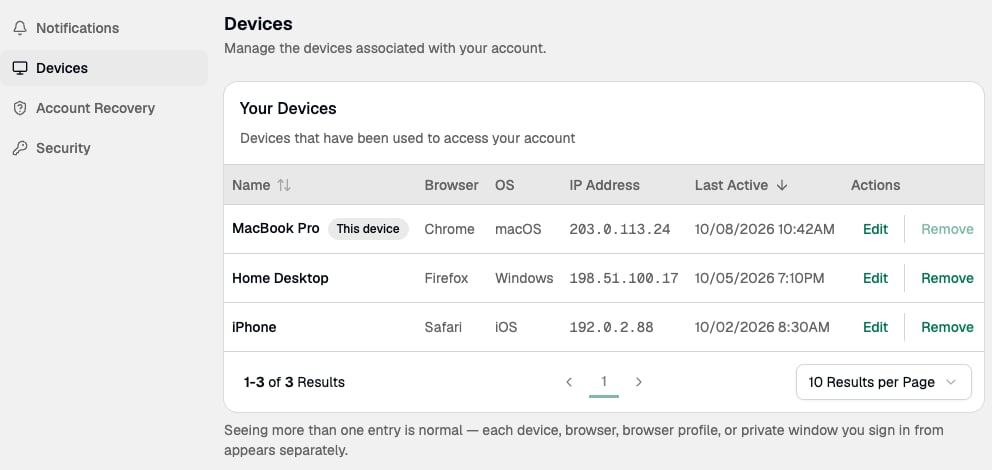
The Dashboard tracks each device you use to sign in to your account. Go to Settings > Devices to view and manage your registered devices.
Settings > Devices page listing three devices with their browser, operating system, IP address, and last active time

How devices are registered

Paxos creates a new device entry each time you sign in from:
  • A new device.
  • A new browser.
  • A new browser profile, including Incognito mode or similar private browsing modes.

Rename a device

  1. Go to Settings > Devices.
  2. Find the device you want to rename and enter a new name.
Each device name must be unique. You can’t give two devices the same name.

Remove a device

  1. Go to Settings > Devices.
  2. Find the device you want to remove and remove it from the list.

New device notifications

When Paxos registers a new device on your account, you receive:
  • A notification in the Dashboard.
  • An email with a Secure my account link.
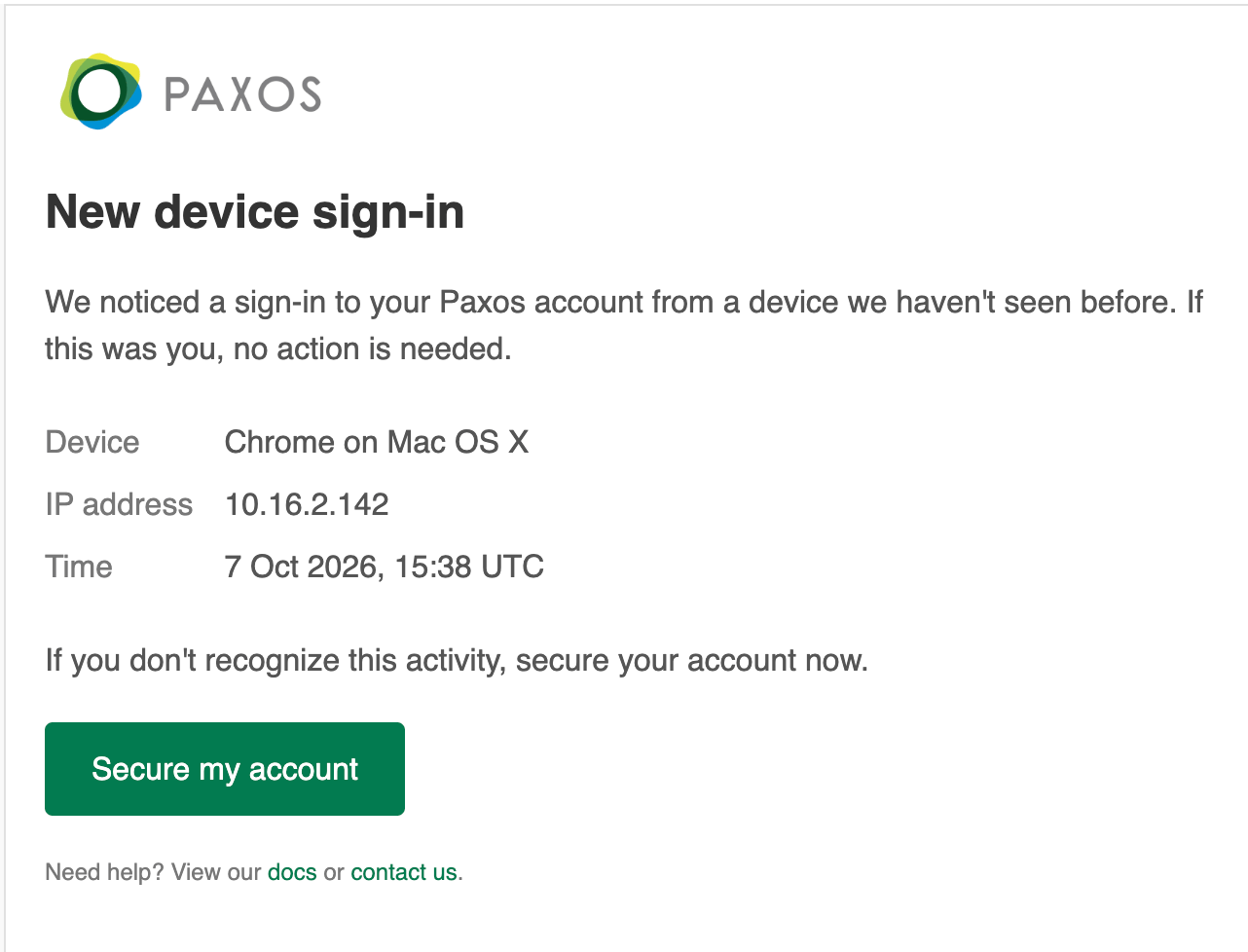
New device sign-in email showing the device, IP address, and time, with a Secure my account button
If you don’t recognize the device, use the Secure my account link in the email to lock down your account. The Secure my account link is valid for 24 hours. If you think your account has been compromised and the link has expired, contact Paxos Support.

Lock your account

Locking your account signs you out of all sessions on every device and disables your user.
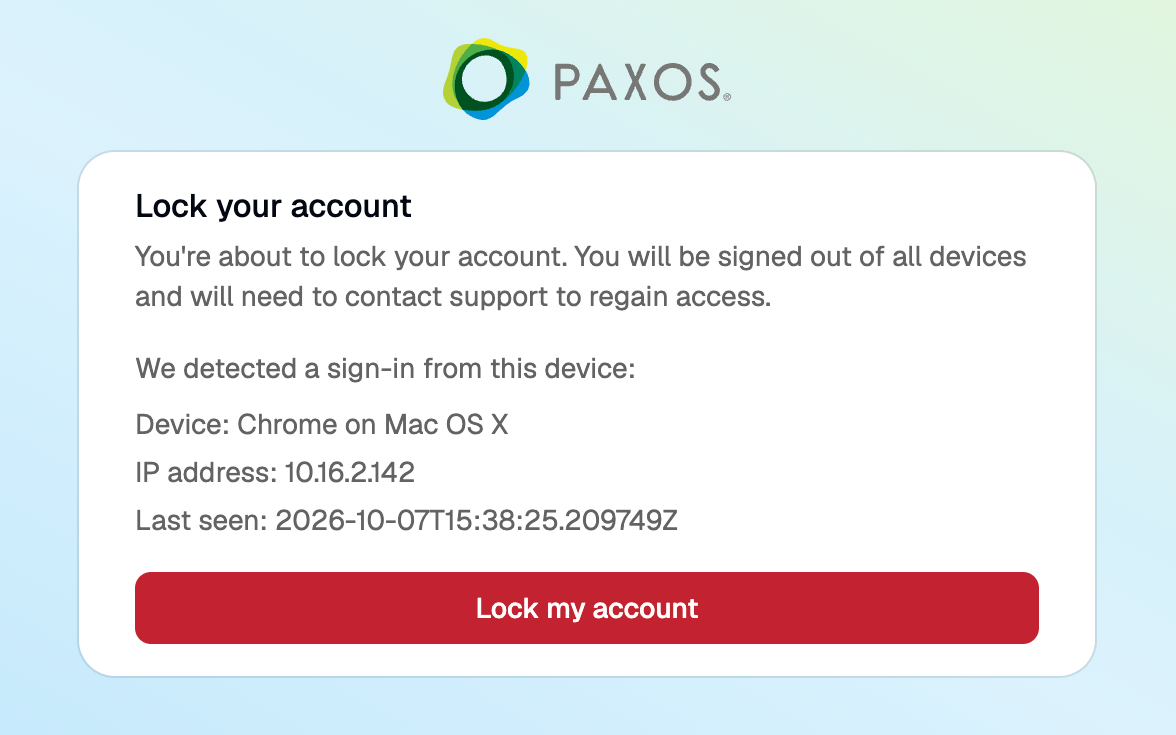
Lock your account page showing the detected device and a Lock my account button
After you lock your account, you can’t sign in until access is restored. To regain access, contact an admin in your organization or Paxos Support.
Questions? Contact Support.